
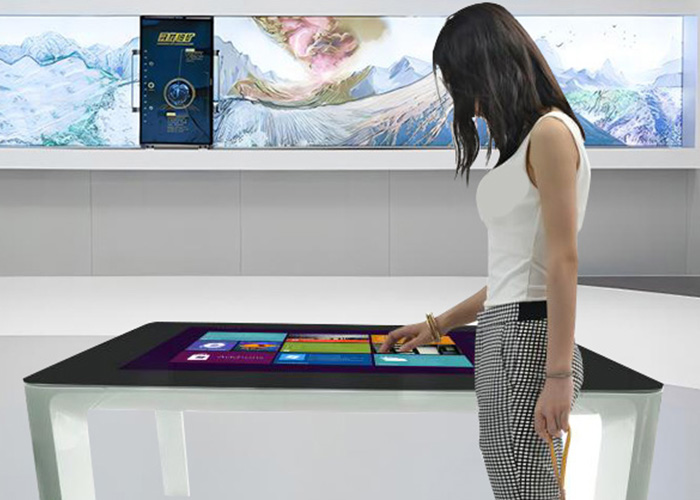
An object recognition exhibition table connects physical models, tagged samples or control objects with digital information. When a visitor places an object on the surface, the system can open photographs, specifications, animation or video related to that item. Moving, rotating or removing the object may trigger another action. This direct relationship makes content easier to explore, but it also adds maintenance requirements beyond those of an ordinary touch display.
Turn Physical Exhibits into Content Controls
Visitors should receive immediate feedback close to the object they placed. The result should be easy to understand without instructions from a technician. Two or more objects may support product comparison, regional planning or a combined story. Standard multi-touch gestures can then allow users to enlarge images, move maps and browse further details.
The interface must control what happens when several people participate. Personal windows should face their users, shared information should remain stable, and removing one model should not close another visitor’s content. The allowed number of simultaneous objects needs to match the table size and software design.
Check Every Model before Opening
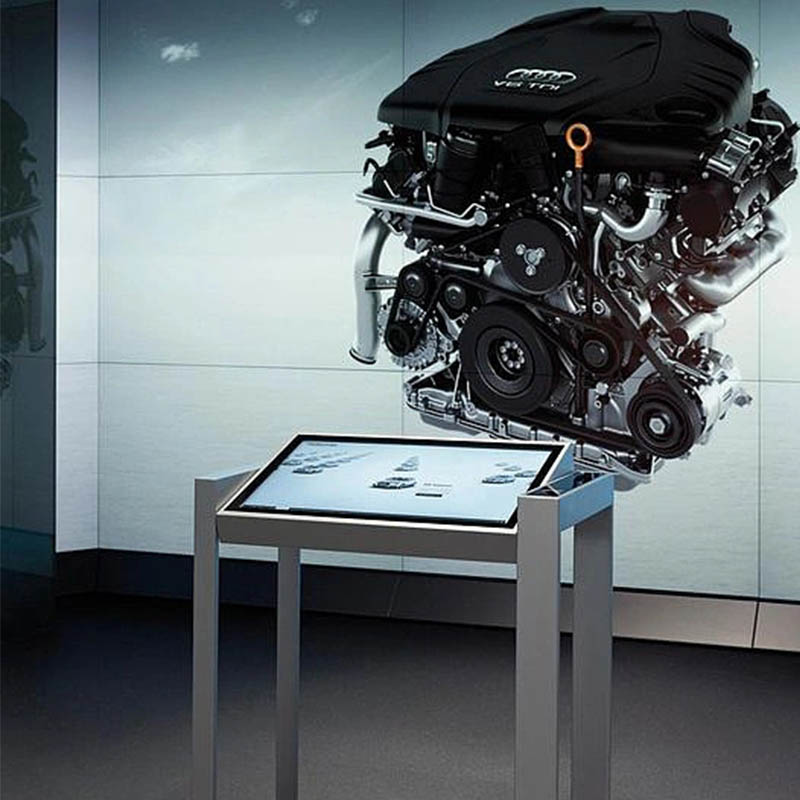
Use an inventory list to confirm the quantity, identity and condition of all recognition objects. The base should not be loose, heavily worn or contaminated. Where objects carry numbers, verify that each number still matches the correct content record. A similar-looking replacement cannot be introduced until it has been configured and tested.
Clean models carefully, keeping liquid away from the recognition base. Test each object in more than one part of the surface. A model that only works in one location may indicate a recognition-zone issue rather than successful normal operation. Record replacement dates so old and new object versions are not mixed without control.
Keep the Recognition Surface Clear
Fingerprints and light dust may not stop recognition immediately, but labels, metal fragments, thick dirt and unrelated objects can interfere with touch or sensing. End the visitor session before cleaning and use a soft cloth approved for display glass. Do not spray liquid directly onto the surface or allow it to collect at the enclosure edge.
Brochures and decorative objects should remain outside active zones. If the exhibition requires additional items on the table, define a non-interactive area during interface planning. Inspect glass edges for movement, cracks and gaps. Changes in the physical relationship between the glass, display and sensing system can reduce reliability.
Separate Model Faults from Table Faults
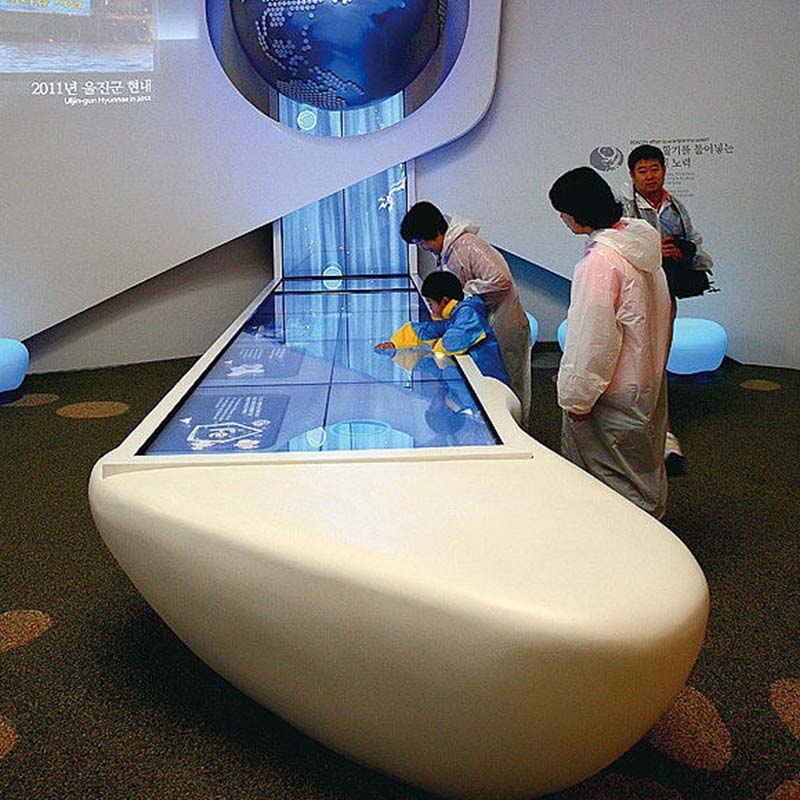
When an object fails, test a known working object in the same location. If the second item succeeds, inspect the original model and its tag. If every item fails in one zone, inspect the recognition hardware, connection and related software service. If recognition succeeds but the wrong content opens, review the mapping database rather than repeatedly restarting the computer.
Maintenance records should distinguish no recognition, wrong content, slow response and a failed surface zone. Those descriptions lead to different diagnostic steps. A general note that the table is unreliable gives support teams too little information to reproduce and correct the problem.
Test Multi-Object and Multi-User Behavior
Routine checks need more than a single model demonstration. Place several approved objects at the same time and observe recognition, window placement and removal behavior. Ask two or more users to continue with normal touch gestures. The application should remain responsive and should not confuse one person’s content with another’s.
If the object recognition exhibition table slows only during busy interaction, review video file sizes, application resource use, object limits and computer performance. Reducing touch sensitivity is not a suitable answer to a software workload problem. The goal is consistent behavior under realistic visitor conditions.
Maintain the Content Mapping
After a content update, follow the object inventory and test every mapping. Titles, images, specifications, videos and language versions must match the physical exhibit. Removed products and outdated project information should no longer be accessible through active objects.
Back up both the content and mapping database before deployment. Use a version number and release the same approved package to every table. If the installation controls a wall display, confirm that sending, stopping and returning to standby still work after the update. Keep a previous stable version available for recovery.
Inspect Cooling, Power and Connections
Exhibition equipment often runs throughout opening hours. Keep vents clear of panels, carpet and temporary storage. Fan noise, local overheating and frequent application closure require inspection. Check power, network and video cables after any exhibition layout change, because moving furniture can pinch or loosen connections.
Follow the correct shutdown process instead of cutting building power without warning. Scheduled startup and shutdown can support unattended venues, but these tasks also need periodic confirmation. Label internal connections and keep the service area accessible so individual components can be replaced without dismantling the complete table.
Validate the Complete Visitor Journey
After maintenance, start from the public home page and test placement, rotation, movement, removal, multi-object comparison, ordinary touch, linked-screen control and automatic return after inactivity. Seeing a recognition icon is not enough if the related content or final reset fails.
Keep the model inventory, mapping table, content backup, administrator access and replacement-part information together. An object recognition exhibition table is defined by the dependable link between physical objects and digital stories. Maintenance must protect that link across the model, sensing surface, software and exhibition operation.
For larger venues, assign a table number and record the object set used at each location. A short daily checklist helps staff identify missing models, damaged glass, failed links or unusual temperature before visitors arrive. Clear ownership prevents small faults from being passed between exhibition, content and technical teams.