
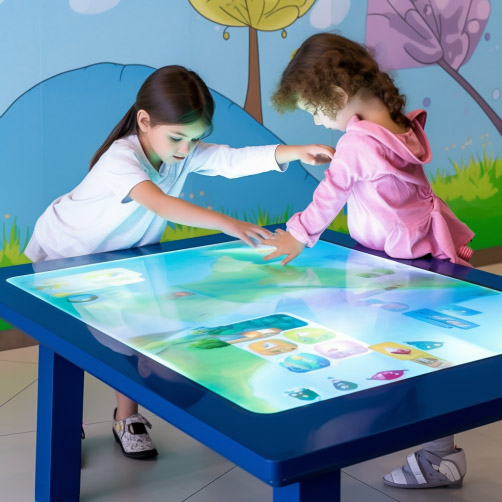
An interactive education touch table gives several students one shared surface for sorting, mapping, simulation, drawing and group discussion. Unlike a wall display, the content is close enough for direct manipulation, while the teacher can observe how the group reaches an answer. In a school, dependable use requires more than attractive activities. Glass safety, frame stability, multi-touch accuracy, user permissions, course updates and classroom recovery must all be maintained.
Support Shared Classroom Work
The interface can divide the tabletop into personal areas around a central shared zone. Students first make choices in their own spaces and then move results to the center for comparison. This layout works for language sorting, mathematical combinations, geographic maps, science processes and collaborative artwork.
Important actions such as deleting work, submitting an answer or ending a lesson need confirmation and an undo option. Text and controls should face students seated on different sides. The software must prevent one participant from taking control of the whole surface or closing another student’s activity.
Clean the Surface after Lessons
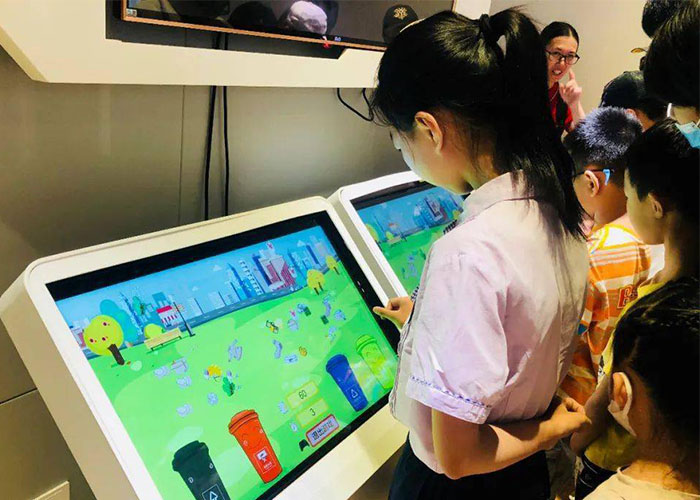
Finish the lesson or enter maintenance mode before wiping so cleaning movements are not recorded as touch input. Remove dust and fingerprints with a soft cloth. If disinfection is required, use a product approved for display glass and apply it to the cloth rather than spraying the table. Test unfamiliar cleaners on a small area before they become part of the routine.
Students should not use general classroom sprays on the equipment. Liquid can enter around glass edges, speakers and external ports. Scissors, compasses and sharp learning tools should remain away from the active display. Persistent marks should be softened and removed gradually rather than scraped with a hard object.
Inspect Glass, Corners and Support
Check the cover glass for cracks, chips and local movement. A damaged surface must be removed from student use because repeated leaning or impact can extend a small fault. Inspect the table corners, frame and legs for sharp points or loose fasteners. Movement under normal student pressure can also strain internal display mounts and wiring.
Power and network cables should not cross walking routes. External ports and service panels need protection from casual access. After the table is moved, confirm that it remains level, stable and correctly connected. Do not pull the unit by its screen edge or cable.
Verify Multi-Touch across the Whole Display
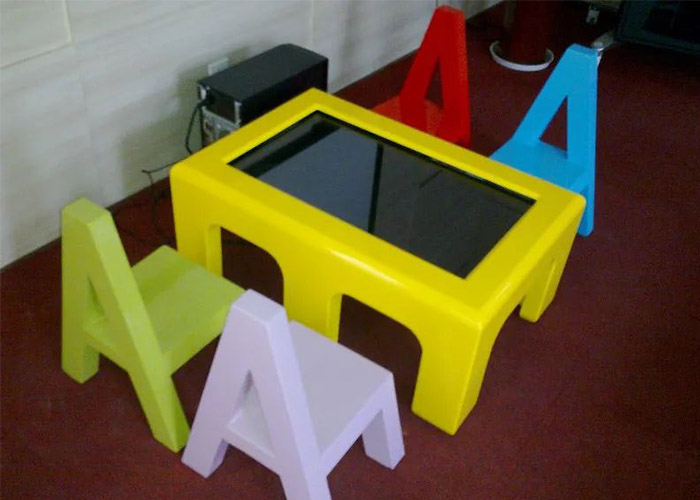
Daily or weekly checks should include the center, all corners and each edge. Use fixed test targets to confirm that the visual and touch positions match. Then ask several people to drag different objects at the same time. A single successful tap does not confirm that a multi-user learning activity will work.
If touch shifts, first clean the glass and restart the touch service. Then inspect the controller, cable and calibration. When only one course application has a problem, review its layout and version. When every application fails in the same zone, the cause is more likely to involve hardware.
Give Teachers Simple Classroom Control
Teachers need to start a lesson, switch tasks, pause interaction, show a result and reset the group without opening operating-system settings. These controls should be visible and predictable. If every interruption requires technical support, the table will be reserved for demonstrations rather than everyday teaching.
Student, teacher and administrator permissions must remain separate. Students should only access approved lessons. Teachers can select activities and save results. Administrators manage networks, applications and maintenance. Passwords must not be displayed beside the table, and remote support should follow school authorization and logging rules.
Remove Student Data between Classes
At the end of a lesson, sign out temporary accounts and remove unsaved personal information. Names, results and work from one class must not appear to the next group. The table should return to an approved home page rather than exposing the desktop, file system or administrator tools.
If the interactive education touch table stores assignments, define where records are kept, who can view them and how long they remain available. A classroom reset should not accidentally delete approved teacher material, so shared course files and temporary student sessions need different storage rules.
Back Up and Test Course Updates
Curriculum content changes, and application updates can affect fonts, touch layouts, video playback and file compatibility. Preserve the current stable version before installing a new one. Test during non-teaching hours and confirm that lessons open, multimedia plays, multi-touch remains responsive and teacher controls still work.
Multiple tables should use a controlled version and directory structure. Teacher-created material needs a defined storage location and regular backup. If an update causes a fault, staff should be able to return to the approved version without rebuilding the complete system during class time.
Monitor Cooling during Consecutive Lessons
Several classes in a row can keep the display and computer under load for hours. Bags, paper and nearby furniture must not block ventilation. A sudden increase in fan noise, slow lesson response or an unexpected restart should be recorded with the application and time of occurrence.
Clean external vents while the unit is powered off and inspect internal cooling according to the school’s maintenance plan. Shut down through the correct procedure during long periods without use. Cutting power without closing applications can damage lesson files and system settings.
Test a Complete Lesson after Maintenance
Sign in as a teacher, start a group activity, allow several students to work, pause the lesson, display the result, save approved content and return to the home screen. Observe reach distance, accidental input, interface direction and how quickly the teacher can recover from an unexpected page.
An interactive education touch table succeeds when teachers can use it without turning a normal lesson into a technical exercise. Consistent cleaning, safety inspection, touch testing, permission control, content backup and realistic classroom validation keep the equipment available for daily collaborative learning.