
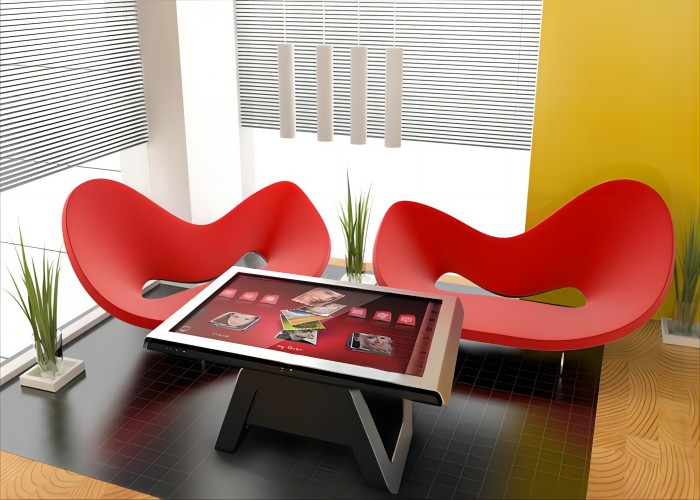
A commercial touchscreen table combines a display panel, touch system, computer, cover glass, furniture frame, power components and application software. Screen size is only one part of the decision. Touch accuracy, structural stability, cooling, cable protection and service access determine how well the complete product performs over years of public or workplace use.
Select the Table around a Real Task
Begin with the environment: exhibition, meeting room, retail store, restaurant, school or entertainment venue. Define whether people will sit or stand, how many users participate, what software runs and how many hours the unit operates. A large screen provides room for maps and shared content, but users must still reach frequent controls without leaning across the display.
Check tabletop height, leg space and viewing angle for seated use. Standing installations need stable support and an appropriate operating distance. Test the frame under normal edge pressure. If the design uses casters, the brakes must hold the unit firmly; a fixed installation needs correct leveling and a planned cable exit.
Match Touch Technology to the Environment
Capacitive touch supports smooth gestures, writing and precise control, but glass thickness, installation and controller tuning affect the result. Infrared touch may suit some large-format or budget-sensitive projects, while its frame and sensing area must remain clear of dust and decoration. The technology name alone does not confirm the final experience.
During acceptance, test the center, every edge and all corners. Ask several people to drag separate objects simultaneously. After installation, a failed zone should be cleaned and tested in more than one application before calibration or hardware work begins. A problem limited to one program is different from the same dead area across the system.
Choose Android or Windows for the Software
Android can suit fixed menus, media presentation and lightweight interactive applications. Windows may be required for professional desktop software, complex peripherals or custom systems. Select the processor, memory and storage from the approved application and content workload, not from a general specification comparison.
List cameras, printers, NFC devices, recognition controllers and other peripherals before ordering. Confirm drivers, ports and application compatibility. Public users must not reach the operating-system desktop, file manager or administrator settings. Provide a controlled home page and a reliable automatic return after inactivity.
Clean the Cover Glass Correctly
Remove loose dust with a soft cloth. Where cleaner is needed, apply an approved product to the cloth rather than spraying the enclosure. Do not let liquid collect around glass joints, touch frames, ports or speakers. Avoid abrasive pads, metal scrapers and corrosive chemicals.
Keys, sharp model bases and rough equipment can scratch the surface. Inspect the glass for cracks, chips and movement. A damaged commercial touchscreen table should be removed from service until the cover and supporting structure have been inspected. A protective film does not make a cracked load-bearing surface safe.
Keep Ventilation and Internal Parts Accessible
The display, embedded computer and power supply produce heat inside the furniture. Keep inlets and outlets clear of walls, paper, boxes and decorative panels. Restaurants, entrances and dusty exhibitions may need more frequent external vent and filter checks than an office.
Investigate increasing fan noise, local heat, slow application response and unexpected restarts. Rebooting can restore operation briefly but cannot correct blocked airflow or a failing fan. Individual fans, power supplies, computers and touch controllers should be replaceable through a planned service panel without removing the full glass assembly.
Inspect Power, Interfaces and Cables
Secure power, network, USB and video cables and provide strain relief at fixed points. Cables must not carry the table weight or cross a route where people can kick and pull them. For adjustable or movable furniture, inspect the complete travel path for pinching, excessive bending and insufficient length.
Shut down and disconnect power before opening the service area. Do not repeatedly insert and remove internal connectors while the system is running. Label connections so a technician can replace a computer or controller and restore the original configuration without guessing.
Control Software Updates and Backups
Preserve the approved operating image, touch driver, application, license information and content files. Test a new version before deployment and keep the previous package available. An update that installs successfully can still affect touch alignment, fonts, video playback, peripherals or automatic startup.
Multiple units should use controlled versions and consistent settings. Remote support can reduce downtime, but it needs authorization, logging and a defined owner. The commercial touchscreen table should recover to its public home page after restart without exposing maintenance dialogs or private files.
Prepare Spare Parts and Service Records
Fans, power supplies, storage devices and connecting cables do not have identical service lives. A multi-unit project can keep appropriate common spares so a minor failure does not stop the entire table for an extended period. Record each unit’s configuration, replacement date and fault description.
Good reports state the failed area, time, active software, temperature condition and actions already attempted. Repeated faults can then reveal a ventilation, installation, software or usage pattern. Without records, different technicians may repeat temporary solutions and never correct the source.
Use a Maintenance Schedule
Daily checks can cover surface cleaning, startup, basic touch and the approved home page. Monthly work may include vents, ports, cables, fasteners, storage capacity and logs. Periodic internal service should address dust, cooling, connector condition, backup recovery and sustained operation under the real application.
After service, complete the same task users perform: start the application, use multiple touches, play media, connect peripherals, reset the session, simulate a network interruption and restart. A commercial touchscreen table is an integrated system, so selection and maintenance must evaluate the whole product rather than the display alone.
Before final acceptance, confirm the warranty boundary, replacement-part availability and support response process. A commercial touchscreen table should remain repairable after installation, with clear responsibility for the frame, display, touch controller, computer, application and on-site integration.