
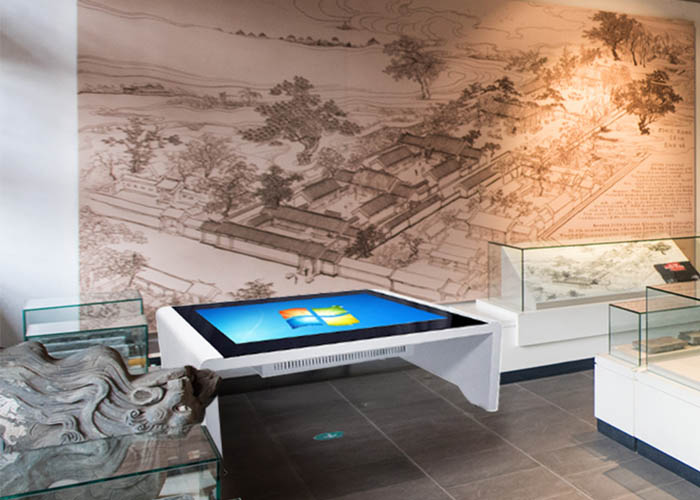
Advertising on an interactive surface is different from running a video loop on a conventional display. Visitors choose what to open, compare products, rotate a model, answer a question or request more information. An interactive advertising touch table therefore needs both thoughtful content design and a maintenance routine built around frequent public use.
Design for active browsing, not passive viewing
The first screen should explain itself without a staff member standing nearby. Use a limited number of clear entry points, such as product categories, project examples, specifications and contact options. Buttons must be large enough for touch, labels should use familiar customer language, and the route back to the home screen should remain visible throughout the experience.
Depth should be controlled. A visitor who needs five or six taps to reach a useful detail may leave before finding it. Place important products and campaign messages near the beginning, then offer optional layers for drawings, video or technical information. Test the flow with someone who did not help create it; internal teams often know shortcuts that a first-time visitor cannot see.
Keep campaign information accurate
An impressive interface quickly loses credibility if pricing, availability, event dates or contact details are outdated. Assign one person to own content approval and record the date of every campaign package. When files are replaced, check the table itself rather than assuming that an upload or synchronization completed successfully.
Use a simple version name that includes the campaign and release date. Archive the approved previous version so it can be restored if a new package fails. Remove old materials from the public menu, but do not delete the only recovery copy. These controls are especially important when an interactive advertising touch table is used at a temporary exhibition where there may be little time for troubleshooting.
Control file size and loading performance
High-resolution product images, 3D models and video can improve a presentation, but oversized files create slow transitions and blank waiting screens. Prepare media for the installed screen resolution and the real viewing distance. Compress files carefully at the content-production stage while keeping an approved master copy elsewhere. Do not fill local storage with duplicate exports.
Test the complete experience after content changes. Open every main category, play each video, rotate models and return to the home screen. Watch for a delay that grows after repeated use, a missing font, a link that opens outside the intended interface or an asset that depends on an unavailable network path. A short structured test is more dependable than clicking a few attractive pages.
Clean a public touch surface safely
Public users leave fingerprints, skin oils and occasional residue, particularly around popular buttons. Turn the screen off before cleaning so marks are visible. Remove loose particles with a soft microfiber cloth, then use an approved cleaner applied to the cloth rather than sprayed directly onto the glass. Keep moisture away from edges, seams and connection openings.
Cleaning frequency should follow traffic rather than a fixed calendar. During a busy event, the surface may need attention several times a day; in a quiet showroom, daily inspection may be enough. Avoid abrasive cloths, paper towels and harsh chemicals. Clean hands and clean tools matter: a cloth carrying grit from another surface can mark the display.
Test the areas customers touch most
A full-screen picture does not prove that touch is working correctly everywhere. Create a test that covers corners, edges, the center, on-screen keyboards and the specific controls used by the campaign. Look for missed touches, double activation or a pointer that appears away from the finger. Recalibrate only through the appropriate system procedure and record recurring faults.
Multi-user content needs an additional check. Ask two or more people to interact at the same time and confirm that gestures do not block one another unexpectedly. If the software was designed for a single user, make that flow clear rather than promising collaboration that the application cannot support. Reliable behavior makes the interactive advertising touch table more persuasive than a long feature list.
Handle lead collection and visitor privacy
If the table collects names, email addresses or project details, the form should request only information needed for a clear business purpose. Explain how the information will be used and provide the appropriate consent notice for the deployment location. Do not leave completed forms visible to the next visitor, and prevent access to administrative dashboards from the public interface.
Use separate staff and visitor accounts. Export leads through an approved process, then confirm that temporary local copies are removed according to the organization’s policy. Do not store browser passwords in a public session. At the end of each day, close personal documents, clear abandoned entries and return the table to its home screen.
Protect cooling, power and network reliability
Exhibition stands and retail displays are often surrounded by panels, fabric and storage boxes. Keep the table’s ventilation openings clear and avoid hiding power equipment where heat accumulates. Inspect plugs and cables for damage, secure routes against visitor traffic and do not overload an extension system. Electrical work should follow local rules and qualified service procedures.
If content depends on the internet, test the real venue connection under busy conditions. Keep essential catalogs or videos available locally when possible, so the main experience continues during a network interruption. Configure recovery behavior after a power loss and verify that the public application returns automatically without exposing the operating-system desktop.
Reset the table between campaigns
Campaign changeover is the right time for deeper maintenance. Back up approved materials, remove expired public files, inspect available storage and install planned updates before loading the next package. Restart the system, confirm date and time settings, test every input and inspect the enclosure for wear or loose parts.
Also review physical placement. The screen should be reachable without blocking an aisle, and cables should remain protected after nearby furniture or signage changes. Lighting must support readability without strong reflections. A successful interactive advertising touch table installation combines good content with a safe, comfortable customer position.
Use a repeatable opening checklist
Before customers arrive, clean the surface, start the public application and open each main section. Test high-use touch zones, video and audio, confirm network access and check that lead forms clear after submission. Walk around the table to inspect stability, ventilation and cable protection. Record any issue instead of leaving it for the next shift.
With accurate content, measured media performance, careful cleaning and consistent opening checks, an interactive advertising touch table can support meaningful product exploration. Its strength is not novelty alone; it is the ability to let visitors find relevant information at their own pace while the operator keeps the experience controlled and dependable.