
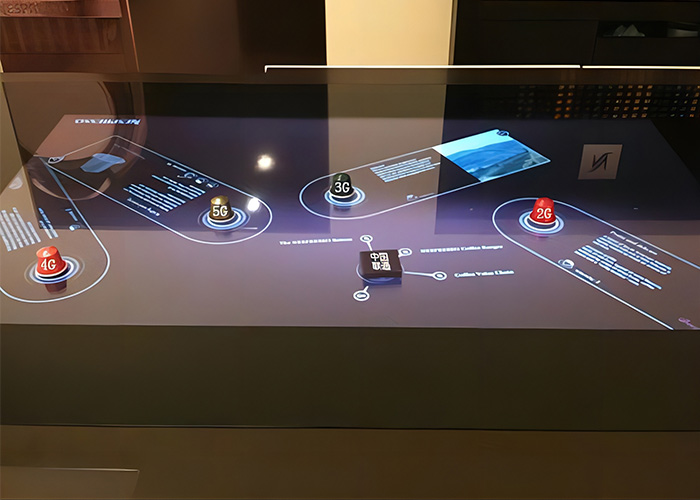
A real estate interactive touch table brings location maps, transport, nearby services, buildings, floor plans and interior concepts into one sales presentation. Agents and customers can explore material around the same surface instead of moving between a model, printed brochure and wall display. The hardware needs normal touch-table care, but content accuracy and customer-session management are equally important in a sales center.
Present Location and Floor Plans in One Workflow
An agent can begin with the project location, open transport routes, schools, hospitals and retail facilities, and then continue to buildings and floor plans. Customers can enlarge drawings, compare layouts and review room relationships. When the table is linked to a wall screen, close selection can happen on the tabletop while a larger audience views the result.
Menus and text must account for people seated or standing on different sides. Personal exploration areas should remain separate from the shared presentation. One participant should not accidentally close material another person is reviewing. Return, comparison and home controls need consistent positions throughout the sales journey.
Verify Property Information before Opening
Check a sample of buildings, available units, floor plans, facilities and project progress each morning. Units that are sold, held or temporarily unavailable must not remain displayed as freely selectable. Area, price and delivery information should come from an approved source and be updated through a controlled process.
Do not allow agents to make different temporary edits on individual tables. That can create conflicting information in the same sales center. Where three-dimensional scenes, furniture and finishes are illustrative, keep the related statement visible after every content update so a customer does not mistake a concept view for the final contract specification.
Maintain Model and Showroom Integration
Some sales centers use building models, tagged floor-plan objects or control knobs. Test each recognized object against the correct content. Placement, rotation and removal should create the expected response. A model that opens the wrong building needs a mapping correction, not repeated restarts.
Keep the recognition base clean and inspect it for wear or looseness. Use a known working model in the same location when diagnosing a fault. This helps separate model damage from a failed sensing zone. If the table controls a wall screen or digital model, also test sending, stopping and returning to the waiting display.
Clean the Glass and Protect the Presentation Surface
Remove brochures, models, keys and personal items before cleaning. End the visitor session, then use a soft cloth for fingerprints and dust. Apply an approved glass cleaner to the cloth, not directly to the enclosure. Liquid should never collect around the glass edge, ports or speaker openings.
Metal keys, sharp model corners and rough display bases can scratch the surface. Staff should inspect the glass for cracks, edge damage and movement. A damaged unit must be removed from customer access. Do not hide a structural problem under a protective film and continue normal use.
Inspect the Frame after Customer Use
Customers may lean against the table while discussing a plan. Check legs, frame fasteners and floor contact when movement appears. Repeated rocking can affect the display mount, touch alignment and internal cables. Keep the surrounding route clear so visitors and agents do not pull external connections.
Before relocation, shut down the real estate interactive touch table and disconnect power, network and video cables. Move it using the frame procedure provided for the installation. Once positioned, verify stability, touch accuracy, model recognition and wall-screen output before reopening it to customers.
Protect Customer Sessions and Personal Data
A customer may enter a name, contact information or preferred unit. At the end of the meeting, sign out temporary accounts and clear the active selection. The next visitor must not see another person’s contact details, pricing proposal or browsing history.
Public users should not reach operating-system settings, file directories or sales administration. Agents may use approved presentation and search functions, while property data and user permissions remain under administrator control. Sending a saved plan to a customer should follow consent and data-handling procedures.
Control Images, Video and 3D Content
High-resolution images, videos and three-dimensional files can gradually consume storage and slow the application. Remove expired versions only after backup. Review loading time, aspect ratio, fonts, navigation and touch target positions on the actual table rather than approving material only on a development computer.
Use a version number across all sales-center devices. Test every release before business hours and keep the previous approved package available. If an update fails, staff should be able to restore a stable presentation without reinstalling the entire system while customers are waiting.
Monitor Cooling during Business Hours
Do not block ventilation with brochures, decoration or nearby cabinetry. Increasing fan noise, local heat, slow response and frequent application closure require inspection. Record the time and content that was running when the fault occurred, since large video or 3D scenes may place different loads on the computer.
Follow the correct startup and shutdown process. Cutting building power without closing the application can damage files and integration settings. Scheduled operation is useful, but it must be checked periodically. Internal fans, power supplies and computers should remain serviceable without removing the complete display assembly.
Test a Complete Customer Meeting
After maintenance, begin with the location map, select a building, compare floor plans, open an interior concept, test any physical model, send content to the wall screen, clear the customer session and return to the home page. This sequence reveals problems that a single touch test cannot show.
A real estate interactive touch table is valuable because it keeps a complicated property presentation connected. Accurate data, a clean and stable surface, reliable showroom integration, controlled customer information and tested content versions are all part of maintenance. When these areas are managed together, agents can focus on the discussion instead of troubleshooting the equipment.
Assign each real estate interactive touch table an equipment number and keep a simple daily checklist for content, touch, temperature and linked displays. A documented owner should review recurring faults and update records, because a real estate interactive touch table combines sales information and technical equipment that are often maintained by different teams.