
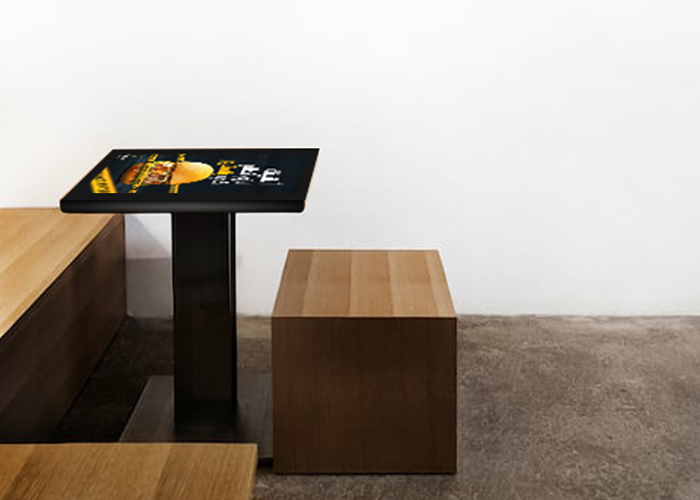
Shared work changes quickly during a meeting. A team may begin with a laptop presentation, move to document review, compare drawings and then invite several people to annotate the same screen. A mobile office touch table supports that flow by providing a large shared surface that can be positioned where the discussion is taking place instead of forcing every meeting into one fixed room.
Plan the working setup before connecting devices
Start by deciding what the table will do in each room. Some teams need a standalone computer for catalogs and office files. Others use the table mainly as a touch-enabled display connected to a laptop. The first setup requires clear local accounts and application management; the second depends more heavily on video, USB and touch-control connections. Defining the expected workflow prevents a meeting from becoming a search for the correct cable or input source.
Record the available ports on the actual unit and the devices that staff normally bring. HDMI, DisplayPort, USB and older video connections are not interchangeable simply because an adapter exists. A video cable may carry the picture while a separate USB connection carries touch control. Label both ends of frequently used cables and keep compatible adapters with the table rather than borrowing them from another room.
Understand picture, touch and audio as separate functions
When a laptop image appears but touch does not control it, the screen is not necessarily faulty. First confirm that the touch-data cable is connected and that the computer recognizes the input device. If touch moves the pointer on the wrong display, review the operating system’s multi-screen mapping. When the pointer is offset, run the appropriate calibration on the connected computer.
Audio should also be tested independently. A meeting can have a perfect image but send sound to the laptop speakers or an unused output. Choose the intended playback device before participants arrive. This three-part check—picture, touch and sound—takes only a few minutes and is more reliable than assuming one successful connection proves everything is ready.
For a frequently used mobile office touch table, create a one-page connection guide with simple diagrams. Include the input-source name, the required touch cable, the location of adapters and the basic display setting. Keep the guide focused on the configuration that staff actually use.
Check software and stylus compatibility early
Touch hardware can imitate common mouse actions, but collaboration software may handle multi-touch, handwriting, palm rejection and gestures differently. Test the exact applications used for presentations, whiteboarding and document annotation. Confirm that important controls are large enough for fingers and that the software can save or export the meeting result in the required format.
If a stylus is part of the workflow, verify that it is designed for the installed touch technology. Do not assume every pen will provide pressure sensitivity or palm rejection. Store compatible pens in a marked holder and inspect the tip for damage. A hard or contaminated tip can reduce writing quality and may mark the screen surface.
Shut down and move the table correctly
Mobility is useful only when relocation is controlled. Close files, sign out of shared accounts and complete the normal shutdown process before disconnecting power. Remove external drives and adapters, secure loose cables and clear all objects from the top. Never use a connected cable as a handle or allow plugs to drag on the floor.
If the design includes casters, release and lock them according to the manufacturer’s instructions. Move slowly, using the structural frame or approved handles rather than pushing on the display glass. Door thresholds, lift gaps and uneven flooring deserve particular care. Use enough people for safe control and follow site handling rules for the table’s size and weight.
After moving a mobile office touch table, place it on a level area, lock the movement system and check stability before reconnecting equipment. Inspect cables for pinching, then test the full touch area. A quick post-move check can identify a loose connector before the next meeting begins.
Protect ports, adapters and cable routes
Connection points receive more wear on a mobile product than on a fixed installation. Avoid sharp cable bends and prevent heavy adapters from hanging unsupported from a port. Use short extension leads or strain relief where appropriate. Replace a cable that works only when held at an angle; repeated use can damage both the cable and the socket.
Keep a small, documented accessory set with the table. It may include tested video cables, the required USB cable, network accessories and clearly identified adapters. Check the set monthly. Removing unknown or faulty items is just as important as adding new ones, because an unreliable adapter can waste more meeting time than a missing one.
Clean the screen and maintain cooling
Turn the display off before cleaning. Remove dust with a clean microfiber cloth, then use a lightly dampened cloth for fingerprints. Apply approved cleaner to the cloth, not directly to the screen, and keep liquid away from edges and ports. Do not use abrasive pads, paper towels or strong solvents. The table frame can be cleaned separately with a method suitable for its material and finish.
Ventilation openings must remain unobstructed. Do not wrap cables around vents or park the table where curtains, boxes or furniture restrict airflow. Listen for an unusual fan sound and note repeated shutdowns or performance slowdowns. Dust removal inside the enclosure should follow the supplier’s service guidance rather than improvised disassembly by office staff.
Use a meeting-room readiness check
Before an important session, start the system, open the required files and connect the presenter’s computer. Test image, touch, audio, network access and any annotation export. Confirm that accounts do not expose another customer’s files. Keep a clean offline copy of essential material when the presentation should not depend entirely on network availability.
A weekly routine should include screen cleaning, cable inspection, storage review and a test of high-use touch areas. A monthly routine can include software updates, adapter checks, caster or base inspection and review of recurring issues. Maintenance notes make patterns visible and help the responsible person act before a small fault interrupts a meeting.
Make mobility support the work
The strongest feature of a mobile office touch table is not movement by itself. It is the ability to bring a consistent interactive workspace to different teams while preserving dependable connections and a familiar interface. That advantage depends on thoughtful setup, careful handling and disciplined checks after every relocation.
When users know how to connect their devices and the maintenance team controls cables, cleaning and software, a mobile office touch table becomes a practical second work surface. It can support presentations, collaborative review and annotation without turning each meeting into a technical setup exercise.