
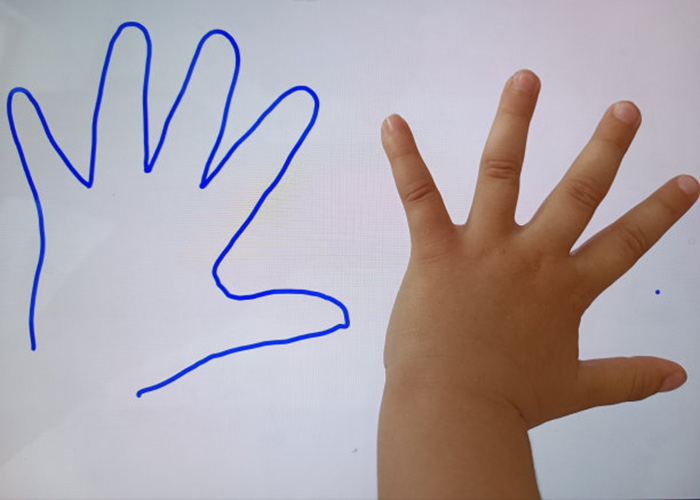
A touch screen video table gives children a shared digital surface for learning, creative play and guided group activities. Instead of watching content passively, learners can tap, move, draw, sort and compare information together. Schools, libraries, museums and early-learning centers can organize video, illustrations, games and lesson resources around practical tasks, while teachers retain control over session length, content access and daily operation.
Turn Multimedia Lessons into Hands-On Activities
Video is most useful when it leads to an action. A short animation can introduce a concept, followed by a sorting task, drawing exercise or collaborative challenge. Immediate visual feedback helps children connect choices with results. Activities should have clear goals and manageable steps so the table supports learning rather than becoming an entertainment screen without educational direction.
The touch screen video table can provide different levels for age, language or ability. Teachers may select a prepared lesson, allow free exploration or guide several learners through one shared task. Large controls, readable type and simple home navigation help children begin independently. Audio should include volume control and captions so essential information remains available in quiet classrooms and noisy public spaces.
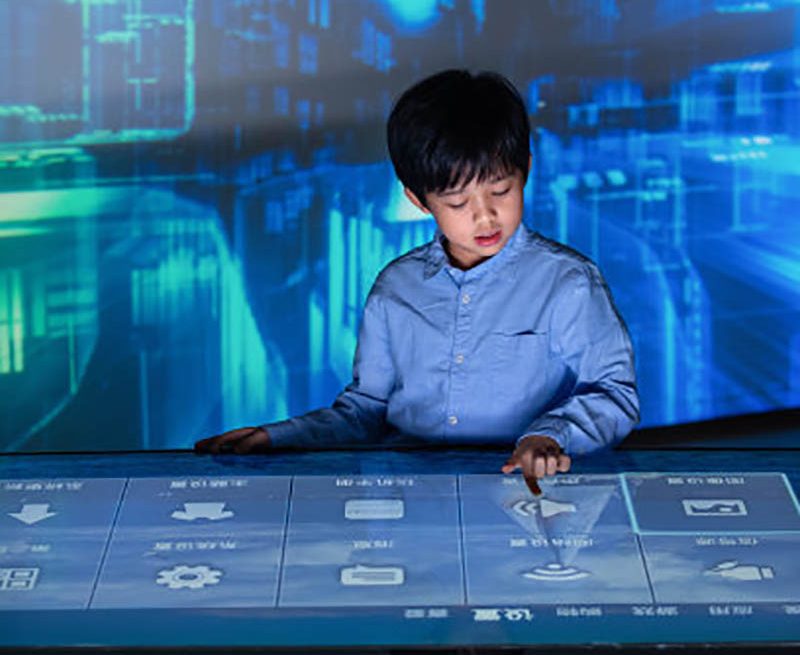
Support Individual and Collaborative Learning
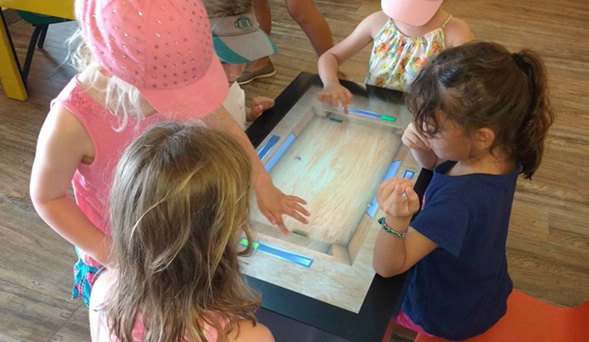
Personal activity zones can let two or four children work at the same time, while a central area holds items for group discussion. Software needs clear ownership rules so one learner cannot accidentally close another person’s work. Cooperative games should reward communication and shared problem-solving instead of only fast tapping.
Teachers need flexible modes for individual practice, pairs and small groups. A session can begin with independent exploration and end with a shared comparison. Progress indicators should be understandable to children without exposing unnecessary scores or personal data. After a class, the application should clear the session and return to the approved starting screen.
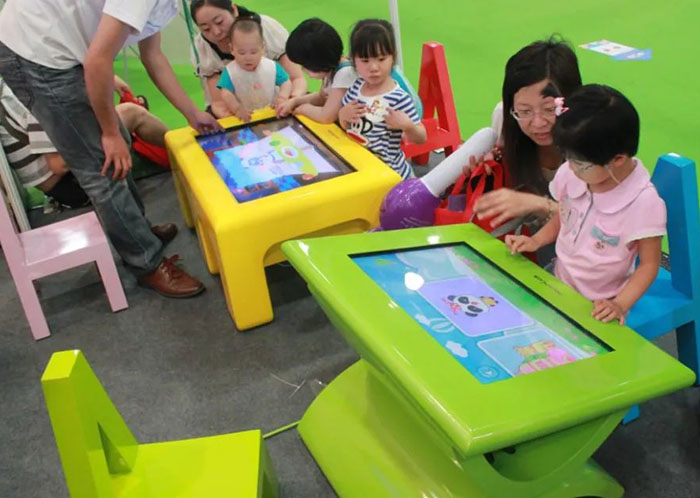
Choose Content That Develops Different Skills
Art activities can include drawing, color exploration, pattern building and simple music interaction. Language resources may combine pronunciation, image matching and storytelling. Science and mathematics lessons can use classification, sequencing, shapes and cause-and-effect simulations. The strongest applications connect on-screen actions with a learning objective that teachers can observe.
A touch screen video table should avoid presenting every category in the same format. Creative activities benefit from open-ended tools, while knowledge practice needs clear questions and feedback. Content should reflect the curriculum, cultural context and expected session length. New resources require review before publication so navigation and difficulty remain consistent.
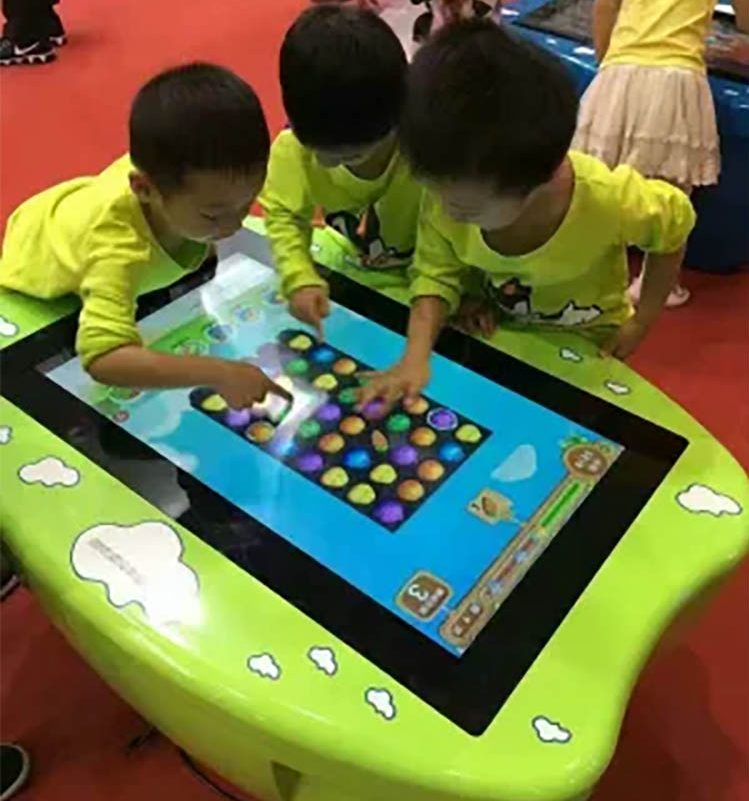
Design Touch Interaction for Children
Children may use several fingers, lean on the edge or touch rapidly. Tracking must remain stable under real behavior, not only during a controlled demonstration. Buttons need generous size and spacing, while important information should not sit under resting hands. Clear animation confirms successful input without overwhelming the lesson.
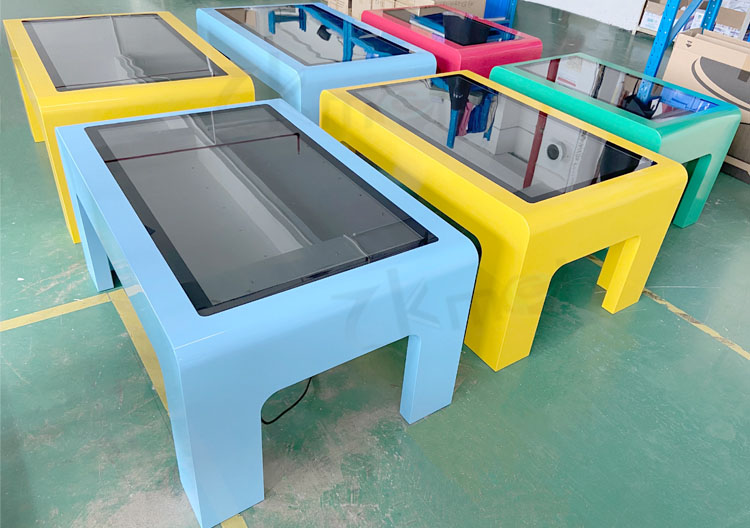
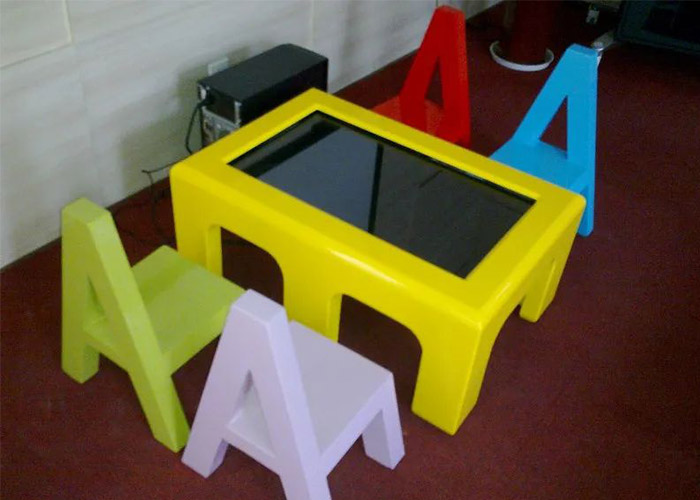
The touch screen video table also needs a child-friendly physical design. Tempered protective glass, rounded edges, stable support and secured power cables help manage daily classroom use. Table height and reach distance should match the intended age group. The approved cleaning method must preserve glass clarity and touch accuracy after frequent use.
Match Hardware to Video and Multi-User Software
Processor, memory, storage and graphics capability should be tested with the final videos, animations and maximum number of active users. Android can suit focused learning applications, while Windows may support customized software and a wider range of peripherals. Smooth playback and immediate touch feedback are more important than untested specifications.
The table should start automatically, recover after a power interruption and prevent children from reaching system menus. Teachers need a controlled method to choose lessons, adjust volume and restart the application. Offline content can keep activities available when network access is restricted or unreliable, while authorized updates should preserve the approved configuration.

Give Teachers Practical Classroom Control
A simple management interface can organize activities by subject, age and duration. Teachers should be able to pause a task, return to the home screen and select the next activity without technical support. Scheduled startup and shutdown may simplify daily routines. Usage reports should focus on educational value and follow the institution’s privacy requirements.
A touch screen video table works best when staff receive a short operating guide. Daily checks can cover glass cleaning, application startup, audio level and reporting of unusual touch behavior. Remote support can assist with software diagnosis, but local access remains necessary for hardware service. Replaceable components reduce downtime.
Validate Learning and Reliability Before Deployment
Prototype testing should involve representative children and educators. Observe whether learners understand the instructions, collaborate naturally and complete the intended task. Check reach, reflections, touch conflicts, audio and session reset. Continuous operation reveals heat or stability issues that may not appear in a short demonstration.
The touch screen video table should be approved as a complete system that includes enclosure, glass, computing hardware and final software. Acceptance criteria can cover startup, response time, repeated multi-user sessions, content recovery and teacher controls. Documenting the approved version makes later maintenance and updates easier.
Plan a Learning Table for the Real Environment
ZXTLCD can configure a touch screen video table around the learners’ age, screen size, operating system, enclosure style and required content workflow. Early coordination between educators, software developers and hardware integrators produces a safer and more useful learning experience. If you would like to get the specification about above product, contact our sales team now.