
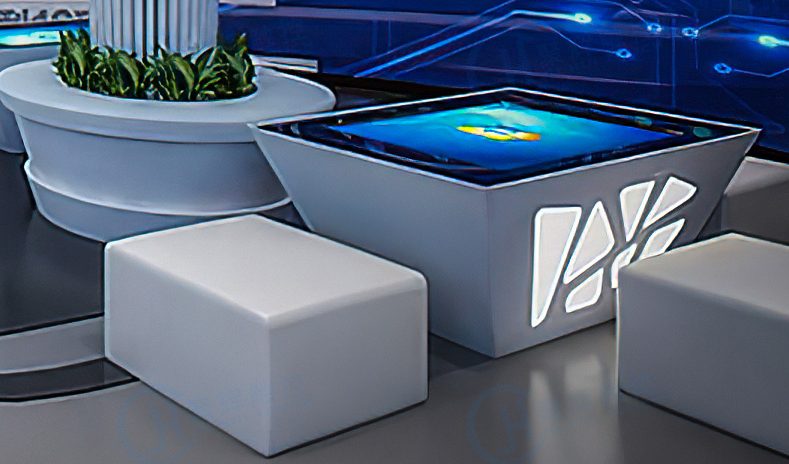
An efficient interactive touch table is not defined by one specification. Its real performance comes from the way the display, touch sensor, computer, enclosure and application work together during daily use. A table with impressive hardware can still feel slow or confusing if the software is not designed for several users, while a well-planned system can make product comparison, education, meetings and exhibition content feel natural.
Project buyers should begin with the user task rather than a list of components. The number of people, type of media, operating hours, installation environment and maintenance process all affect the final configuration. Clear requirements allow the supplier to balance response speed, image quality, construction and service access without adding expensive features that provide little practical value.
Define the Main Task Before Selecting Hardware
A museum table may guide visitors through stories, a showroom table may compare products, and a meeting table may support documents and annotation. These applications place different demands on the interface and computer. A useful project brief describes what users will do from the moment they approach the table until the activity ends, including how the system returns to its starting state.
The efficient interactive touch table should be sized around that workflow. A surface that is too small makes users compete for space, while an oversized display increases reach distance and cost. A full-size mock-up helps the team evaluate table height, viewing direction, central reach and surrounding circulation before approving the enclosure.
Make Multi-User Touch Feel Predictable
Touch-point count matters only when the application can use it. Several users may drag, rotate and enlarge content at the same time, so the system must separate their actions and avoid sudden jumps. Controls should remain readable from the expected directions, and the interface needs sensible limits that prevent one enlarged window from covering the entire shared surface.
Testing should include rapid repeated touches, multiple moving objects and fingers resting on the glass. The efficient interactive touch table must distinguish intentional gestures from accidental contact near an edge. Stable tracking, consistent response and clear feedback are more important to users than an isolated laboratory response-time figure.
Match Computing Performance to Real Content
High-resolution video, several simultaneous windows, 3D models and real-time data require more processing resources than a simple catalog. The processor, memory, graphics capability and storage should be tested with the actual application. Selecting excessive hardware increases cost and heat, while insufficient performance produces delays that make users repeat gestures and lose confidence.
Android can support focused applications and simple content management, while Windows may be preferable for specialized software, peripherals or complex interactive media. The choice should also consider automatic startup, update procedures and recovery after power interruption. The operating system should remain hidden from public users while authorized staff retain controlled access.
Control Heat, Noise and Long Operating Sessions
A tabletop enclosure places computing components below a large display, making thermal design important. Ventilation must remove heat without creating exposed openings or excessive noise. The efficient interactive touch table should complete long-duration testing under a realistic workload, because a short demonstration may not reveal slowdowns or unstable behavior that appears after several hours.
Maintenance staff need access to filters, fans, the computer, power supply and control boards without dismantling the whole installation. Internal cables should be organized and labeled, and external cables should be concealed. These details reduce service time and help the table return to operation quickly after routine maintenance.
Balance Glass Protection with Image and Touch Quality
The top surface needs to tolerate frequent touching and approved cleaning methods. Protective glass should provide sufficient strength without reducing touch accuracy or making small text difficult to read. Reflection must be evaluated under the venue’s lighting, especially when dark content is important. Anti-glare treatment can help, but the final choice should be judged with the real screen and content.
Rounded edges, stable support and appropriate materials improve safety in public environments. The enclosure finish should resist fingerprints and routine wear while remaining consistent with the surrounding interior. If optional devices such as NFC, cameras, object-recognition tokens or wireless charging are required, their positions must not interfere with touch use or service access.
Build an Interface for Shared and Personal Work
Several people do not always need to control the same window. Personal zones can let users browse independently, while a central area displays selected content for comparison or discussion. This model works well for product configuration, collaborative learning and planning activities. The layout should adapt when fewer or more users join the session.
An efficient interactive touch table needs a clear first action, visible navigation and a reliable reset. Instructions should be short and placed near the relevant control. An inactivity timer can close open content and return the system to its home screen, preventing one visitor’s session from affecting the next. Staff should also have a simple manual reset method.
Plan Content Updates and Daily Management
Content will change after installation, so the project should define who prepares updates, how files are approved and how new material reaches the device. Local USB updates may suit isolated installations, while networked systems can support remote management across several locations. Access permissions and rollback procedures reduce the risk of an incomplete update interrupting public operation.
Daily routines should cover startup, shutdown, cleaning, visual inspection and fault reporting. A short operator guide helps staff handle common issues without exposing system settings. Remote support can assist diagnosis, but replaceable components and accessible construction remain important when physical service is required.
Accept the System Through Real User Tasks
Final acceptance should reproduce the intended workflow. Several representative users can complete a product comparison, learning exercise or planning task while the team records response, readability, reach and accidental touches. Long operating tests should include the final software, network conditions and connected devices instead of using an empty demonstration program.
ZXTLCD can configure an efficient interactive touch table around the required application, screen size, touch method, operating system, enclosure and optional modules. A sample can confirm structural details and software performance before volume production. If you would like to get the specification about above product, contact our sales team now.