
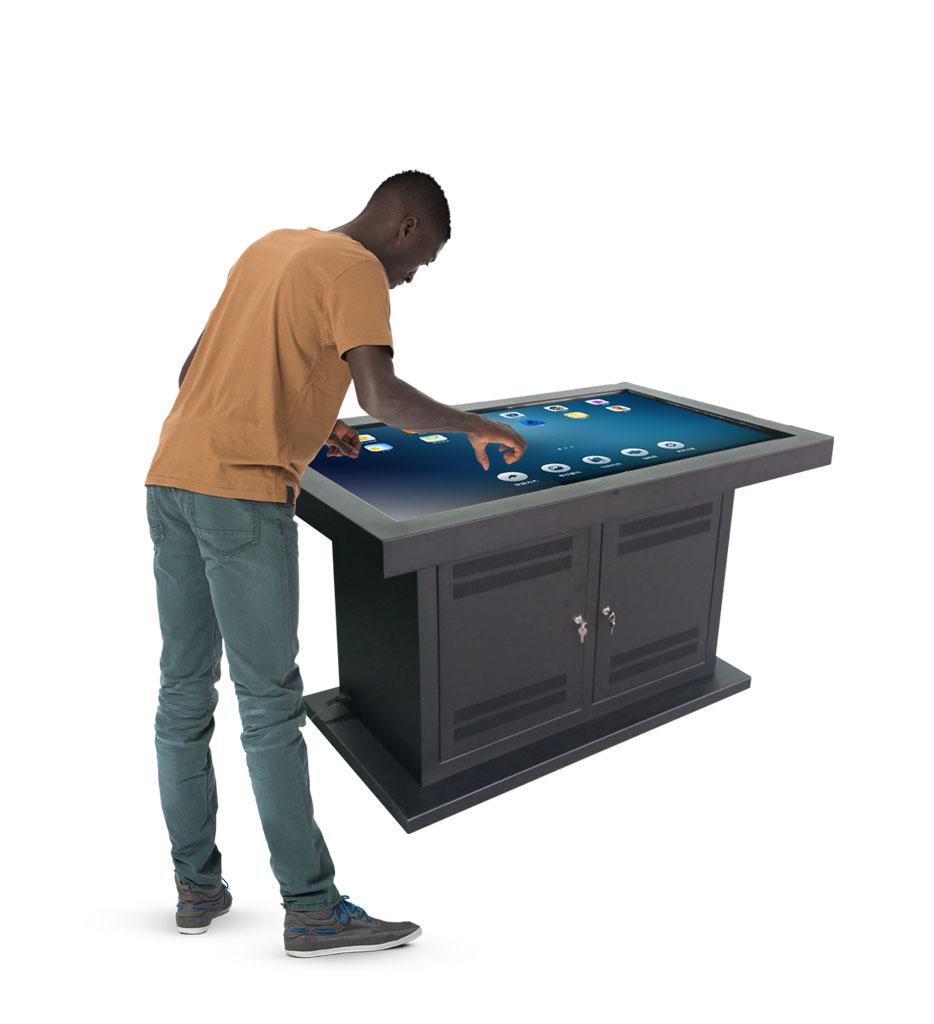
Build a Touch Table Around Real Workplace Habits
A workplace smart touch table works best when it supports the way people already meet, present, review documents, and make decisions. The screen may be the most visible part of the product, but daily reliability depends on the complete setup: power, network access, software permissions, room layout, cleaning routines, and clear ownership. Treating the table as shared workplace equipment rather than a novelty keeps it useful after the first demonstration.
Start by defining the main job for each installation. A boardroom unit may need wireless presentation, annotation, and video meetings. A reception table may need a guided product catalog and a simple visitor journey. A project room may need large drawings, maps, or dashboards. A clear purpose prevents unnecessary applications from filling the interface and makes training much easier.
Choose a Practical Position and Workspace
Place the table where users can approach it comfortably without blocking doors, walkways, or chairs. Leave enough space for two or more people to stand at different sides when collaborative use is expected. Glare from windows and strong ceiling lights can reduce readability, so check the screen from normal viewing positions at several times of day.
Cables deserve the same attention as the display. Route power and data leads away from feet, chair wheels, cleaning machines, and moving table parts. Use strain relief near connectors and label both ends of any cable that may be disconnected. If adapters are needed for guest laptops, keep a tested set in the room instead of relying on visitors to bring the correct type.
Ventilation openings must remain clear. Do not push boxes, fabric panels, or loose papers against intake and exhaust areas. Heat that cannot escape may shorten component life and can cause slow performance during long meetings. When the table is installed inside custom furniture, confirm that service panels and airflow paths remain accessible.
Prepare a Consistent Start-of-Day Check
A short readiness check prevents most meeting-room delays. Wake or start the workplace smart touch table, confirm that the display reaches the home screen, and test touch response near the center and corners. Open the main presentation application, verify network access, and check the preferred laptop connection. This routine should take only a few minutes.
Keep the home screen simple. Pin the tools people use most and remove shortcuts that lead to settings, installers, or unfinished content. Use a standard welcome screen with brief connection instructions. If the table supports different departments, provide clearly named profiles or folders rather than one crowded desktop.
Test multi-user operation with the actual application, not only with a drawing utility. Some software accepts several touch points but assigns control to one active user. A quick test with two colleagues reveals whether gestures, object movement, and annotation behave as expected. Record application-specific limits in the room guide.
Manage Accounts, Content, and Connections
Shared equipment should not depend on one employee’s personal account. Use a managed device account with the minimum permissions required for presentations and approved applications. Protect administrator access, disable automatic password saving in browsers, and create a routine for clearing downloaded files and sign-in sessions after meetings.
Store presentation content in a controlled location with recognizable file names and dates. Reception or showroom material should have an approved master copy and a simple rollback option. Before replacing a catalog, map, or demonstration, test the new version offline and confirm that buttons, videos, fonts, and external links work on the table’s operating system.
Wireless presentation is convenient, but a wired backup remains valuable. Keep one known-good HDMI or USB-C path available and test it after system updates. If a guest network is used, confirm that it allows the required casting method. Network changes made elsewhere in the building can affect discovery even when ordinary web access still works.
Clean the Touch Surface Without Creating Damage
Turn off the display or lock touch input before cleaning. This makes marks easier to see and prevents accidental commands. Remove loose dust with a clean, dry microfiber cloth. For fingerprints, lightly dampen the cloth with a cleaner approved for the screen surface. Never pour or spray liquid directly onto the glass, bezel, ports, or seams.
Use gentle, overlapping strokes and avoid abrasive pads, paper towels, powdered cleaners, or sharp scraping tools. Strong solvents may damage coatings or printed finishes. In high-use rooms, clean contact areas at a predictable time rather than waiting until the screen looks heavily marked. Keep cleaning materials nearby in a labeled container so staff do not improvise.
The frame and stand also need attention. Wipe edges, handles, and accessible cable covers, then inspect for loose trim or movement. If liquid reaches a seam or connector, disconnect power when safe and follow the supplier’s service guidance. Do not continue operating the workplace smart touch table simply because the image still appears normal.
Protect Hardware During Moves and Room Changes
Before moving the unit, close applications, shut down the operating system, switch off power, and disconnect every cable. Never pull a table by its display edge or use attached cables as handles. Use the designated frame points, secure movable accessories, and assign enough people for the product’s size and weight.
After relocation, check that the table is stable and level before reconnecting it. Inspect plugs for bent contacts, confirm that ventilation is not obstructed, and repeat the touch and network tests. A room change can alter Wi-Fi quality, glare, cable reach, and user circulation even when the hardware itself has not changed.
Use a Simple Maintenance Schedule
Daily checks should cover cleanliness, startup, touch response, and the main connection method. Each week, inspect cables and ventilation areas, remove temporary files, and test key applications. Monthly, review storage space, operating logs, software versions, mounting hardware, and the condition of frequently touched surfaces.
Plan updates instead of accepting them immediately before an important event. Record the current version, back up essential content, install during a maintenance window, and test every critical workflow afterward. If a problem appears, the record helps staff explain what changed and decide whether to roll back or contact support.
Create a small service log for the workplace smart touch table. Include the date, symptom, application in use, connected device, actions taken, and result. Repeated notes such as intermittent corner touches or a loose connector often reveal a developing fault before it causes a complete interruption.
Make Responsibility Clear
Assign an owner for content, an owner for device administration, and a contact for physical maintenance. These roles can belong to the same person in a small office, but naming them prevents confusion. Post a short user guide near the table with startup, connection, cleaning, and support instructions.
Useful workplace technology should feel predictable. With a focused interface, protected accounts, tested connections, careful cleaning, and recorded maintenance, a workplace smart touch table can support quick stand-up discussions, detailed reviews, client presentations, and collaborative planning without adding unnecessary friction to the room.