
Next Generation Interactive Table Features and Maintenance

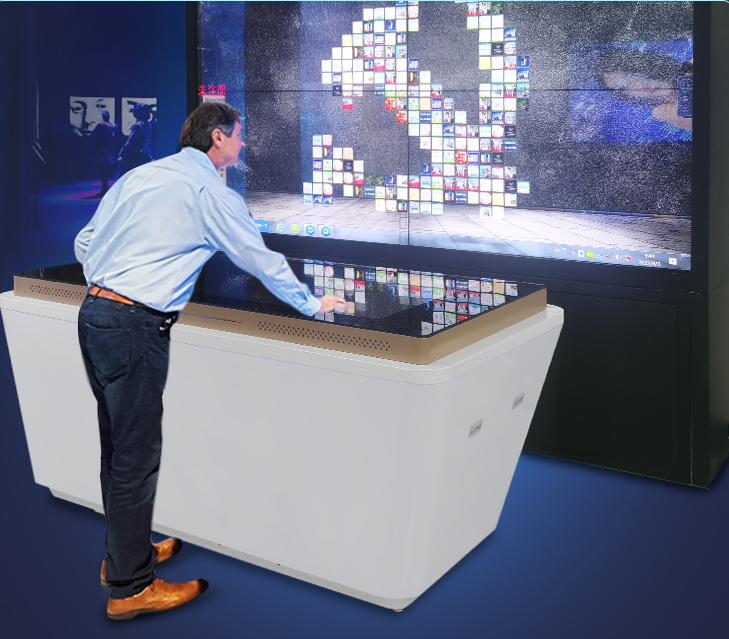
Design the Experience Before Choosing the Technology
A next generation interactive table should make a shared task easier, not simply place a large touchscreen inside a piece of furniture. The strongest projects begin with a clear user journey. Who approaches the table, what do they need to accomplish, how long will they stay, and what should happen when they finish? These questions shape the screen size, interface, software, network, access control, and maintenance plan.
In a showroom, visitors may compare products and send selected information to a salesperson. In a museum, several people may explore a map or timeline together. In a meeting room, teams may open drawings, annotate documents, and share results. Each situation needs different content, but all of them benefit from direct navigation, readable text, obvious controls, and a reliable way to return to the starting screen.
Make the Interface Comfortable From Every Side
A horizontal display changes familiar interface rules. People may stand at opposite sides, reach from different angles, and use the screen at the same time. Important buttons should not sit only along one edge. Text should remain readable from the intended positions, and controls should be large enough for quick selection without precise finger placement.
Keep the opening screen focused on a small number of useful choices. Deep menus and long instructions slow down first-time users. Use visible home and back controls, provide clear feedback after every touch, and make time-outs predictable. If the content resets automatically, warn users before their work disappears.
Accessibility also matters. Check contrast under real room lighting, avoid relying on color alone, and provide alternatives for sound-based content. The physical height and reach distance should suit the expected audience. When wheelchair access or children’s use is planned, test the installation with representative users rather than relying only on dimensions.
Match Multi-Touch Hardware With Real Software
The value of a next generation interactive table comes from the connection between hardware and content. A high touch-point specification does not guarantee useful collaboration if the application supports only one active user. Test common gestures, simultaneous object movement, palm contact, edge response, and behavior when several hands enter the screen at once.
Use the final operating system and application during acceptance testing. Browser-based content, Windows applications, and Android applications can respond differently to the same touch hardware. Verify videos, fonts, animations, external links, and any device connections. If RFID, cameras, NFC, object recognition, or payment peripherals are included, test their complete workflow rather than testing each component separately.
Performance should remain stable during a full working session. Open the largest expected files, run media at the intended resolution, and repeat the most demanding interaction. Watch for delayed touch feedback, heat-related slowdown, memory warnings, or network interruptions. A short demonstration may not reveal problems that appear after several hours of public use.
Control Content Versions and User Access
Interactive content changes over time, so every installation needs a simple publishing process. Keep an approved master copy, identify each release by date or version, and retain a known-good rollback package. Test updates on a matching device before they reach the live table. This is especially important for multilingual content, product catalogs, maps, and applications that depend on external services.
A public or shared table should use a restricted account. Remove unnecessary settings, disable unauthorized installation, and prevent browsers from saving personal credentials. At the end of a session, temporary files and user data should be cleared according to the organization’s privacy policy. Administrative passwords should be held by responsible staff rather than posted near the device.
Network access should follow the same principle. Allow only the services needed by the application, keep management access separate where practical, and document all connection requirements. A wired connection is often the most predictable choice for permanent installations, while a tested wireless method can support guest presentation in meeting rooms.
Plan Cleaning for the Actual Level of Use
Every next generation interactive table is a high-contact surface. Establish a cleaning method before opening it to users. Lock touch input or power down the display, remove dust with a clean microfiber cloth, and apply an approved cleaner to the cloth rather than spraying the screen. Liquid must not run into the bezel, ventilation openings, speakers, connectors, or seams.
Avoid abrasive pads, rough paper, sharp tools, and strong solvents unless the manufacturer specifically approves them. These materials can scratch glass, damage coatings, or fade printed finishes. Clean the surrounding frame, handles, and accessible edges as well as the screen. In busy locations, schedule light cleaning several times a day instead of waiting for heavy marks to accumulate.
After cleaning, inspect the surface under good light and confirm normal touch response. Repeated false touches, dead areas, or movement without contact should be recorded. First check for moisture, loose cables, software changes, and nearby electrical interference, then contact service support if the symptom continues.
Protect Power, Cooling, and Internal Components
Reliable operation depends on stable power and unrestricted airflow. Use the specified input voltage, grounded outlets, and suitable surge protection. Route cables away from visitors and cleaning equipment, secure them near connection points, and label both ends. Do not connect high-load appliances to the same extension lead as the table.
Keep air intakes and exhaust paths open. Dust buildup should be inspected at a frequency appropriate to the environment. Retail entrances, event spaces, and carpeted rooms may need more frequent attention than controlled meeting rooms. Never cover vents to improve appearance or reduce fan noise, because trapped heat can shorten the life of the display and computing components.
Listen for changes in fan noise and check for unusual heat, odor, random shutdowns, or slow performance. Shut the system down safely when a serious electrical or thermal symptom appears. Continuing to operate a next generation interactive table through repeated shutdowns can turn a serviceable issue into a larger failure.
Inspect the Structure and Move It Safely
The enclosure supports expensive electronics and must remain stable under repeated leaning and touching. Check feet, wheels, locks, fasteners, access panels, trim, and glass edges. Any rocking, loose panel, cracked surface, or exposed cable should be addressed before the unit returns to public use.
For relocation, close applications, shut down the operating system, disconnect power, and remove all accessories. Use designated lifting or pushing points and enough trained people for the weight. Do not pull on the screen edge or attached cables. After moving, level and stabilize the table, reconnect it carefully, and repeat the functional checks.
Create a Maintenance Record That Supports the Product Lifecycle
Daily checks can cover surface condition, startup, touch response, sound, and the main application. Weekly work can include cable inspection, ventilation review, storage cleanup, and peripheral testing. Monthly checks can cover mounting hardware, software versions, security settings, logs, and backup content.
Record faults with the date, time, application, connected devices, visible symptoms, and action taken. Photos can help when physical damage is involved, but descriptions should be specific. A note such as “screen failed” is less useful than a record of where touch stopped responding and whether restarting changed the result.
A next generation interactive table becomes a dependable long-term asset when design, content, hardware, cleaning, and support are managed together. Clear ownership and routine checks keep the experience intuitive for users while giving operators the information they need to prevent downtime and plan future improvements.
I was excited to uncover this great site. I need to to thank you for your time for this particularly wonderful read!! I definitely enjoyed every part of it and I have you book marked to check out new stuff in your web site.
Thanks dear! Hope to bring you more useful information.