
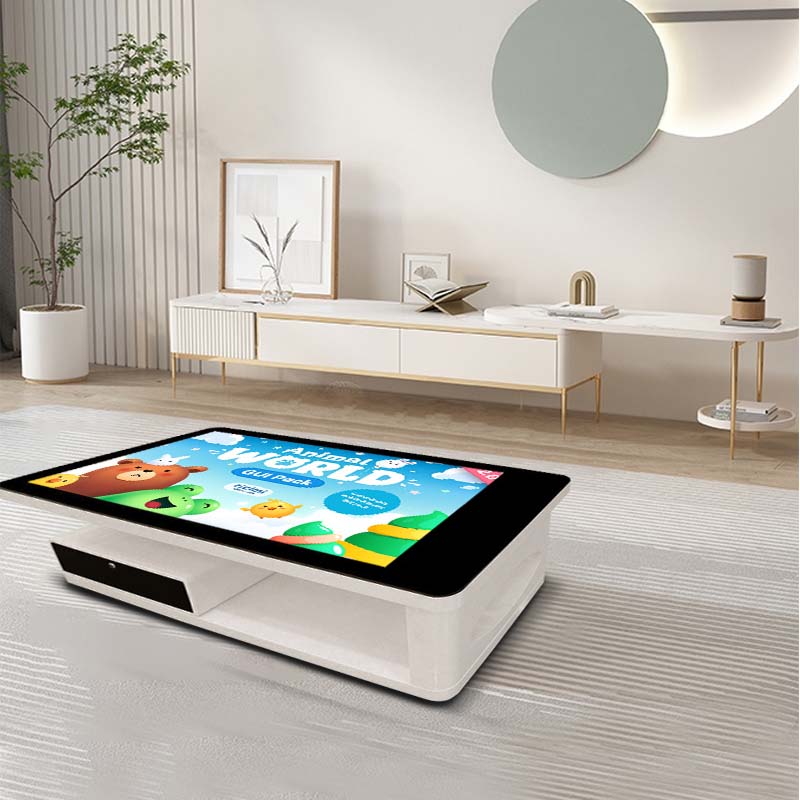
A touch screen coffee table maintenance plan must protect two different parts of the product: the interactive display and the furniture structure around it. When the screen is off, the table may support reception conversations, documents and drinks. When it is on, it becomes a shared surface for catalogs, videos, presentations and simple games. Reliable use depends on treating both roles carefully.
Organize the tabletop before daily use
Define separate areas for drinks, papers and touch interaction. Use coasters or a tray and keep cups away from the display edge. Visitors need space for personal items, but bags, brochures and decorations should not cover ventilation openings or place concentrated weight on the glass.
In a reception setting, keep the home screen simple. Company information, product catalogs, project images and contact options should be easy to find. After a visitor leaves, close open files and return to the approved welcome page so the next meeting begins from a clean state.
Clean glass and furniture with different methods
Turn the display off before cleaning. Remove loose dust with a clean microfiber cloth, then use a lightly dampened second cloth for fingerprints. Apply approved cleaner to the cloth instead of spraying the screen. Avoid paper towels, abrasive pads and strong solvents that may affect the glass or coating.
The frame may be metal, wood or a coated composite material. Follow the cleaning method appropriate for the supplied finish, and use separate cloths for the screen and the legs. A cloth that has picked up grit from another surface can scratch the display.
Spills require immediate attention. Blot the liquid rather than wiping it toward the screen joint. Inspect seams and ports, and disconnect power according to the site procedure if liquid may have entered the enclosure. Correct touch screen coffee table maintenance never assumes that a dry-looking surface proves the electronics are safe.
Test the complete touch area
Routine checks should cover the center, edges and four corners, as well as on-screen keyboards and frequently used buttons. If the pointer appears away from the finger, first confirm display orientation and multi-screen mapping, then use the approved calibration process.
When several people use the table, test simultaneous touch with the actual application. Hardware support for multiple touch points does not guarantee that every program handles multi-user gestures well. Interface design, button placement and software performance all influence the result.
Control heat and the surrounding environment
Do not surround the table with magazines, fabric, display stands or boxes that block airflow. Keep the power supply in a ventilated position. Avoid prolonged direct sunlight, heating outlets and strong air-conditioning discharge, which can create temperature changes and make the screen harder to read.
For all-day operation, observe startup time, fan sound, surface temperature and application response. Record repeated slowing, restarts or black screens rather than relying on forced power cycling. Internal cleaning and fan service should follow supplier guidance.
Inspect the structure and cables
People may lean on the table during conversation, so inspect legs, the base, connecting points and underside panels. New wobble, gaps or sounds should be investigated. Tighten only according to the assembly instructions; excessive force may damage an insert or hide a worn component.
Route power, network and external video cables away from walkways. Leave enough slack to protect connectors without allowing loops to drag on the floor. Replace a cable that is damaged or works only when held at an angle.
Move and restart the table correctly
Before moving, close applications, shut down normally, disconnect every cable and clear the top. Protect corners and use enough people or suitable equipment. Do not push on the touch glass or use a connected cable as a handle.
After relocation, confirm that the table is level and stable, reconnect cables without pinching them, and test the full touch area. A touch screen coffee table maintenance record should note the move and any new condition found afterward.
Use a practical maintenance schedule
Every day, inspect cleanliness, stability and the home screen. Every week, test key applications, audio, network access and high-use touch zones. Every month, review storage, updates, ports, ventilation and recurring fault records.
Schedule software updates outside visitor hours. After updating, restart the system and test touch, sound, network and presentation files. Remove expired public content, but keep an approved backup that can restore the previous working version.
Prepare the table before important visits
Before an important customer visit, approach the table as a guest would. Confirm that the first screen is understandable, the required catalog or video opens quickly, audio uses the intended output, and seated users can reach the main controls. Check that no private document or administrator menu is visible. Place cups and presentation samples in their defined areas, then complete one final edge-to-edge touch test.
Protect both sides of the product
The value of a touch coffee table is not simply a screen installed in furniture. It allows reception, leisure and information sharing to happen in one place. A consistent touch screen coffee table maintenance routine protects the appearance, the structure and the interactive system together.
With controlled beverage placement, correct cleaning, full-screen testing and documented service, touch screen coffee table maintenance becomes a manageable part of normal operations. Keep the approved cleaning materials and a short operating guide near the responsible staff, and record every unusual symptom before restarting. The result is a table that remains welcoming when used as furniture and dependable when digital content is needed.